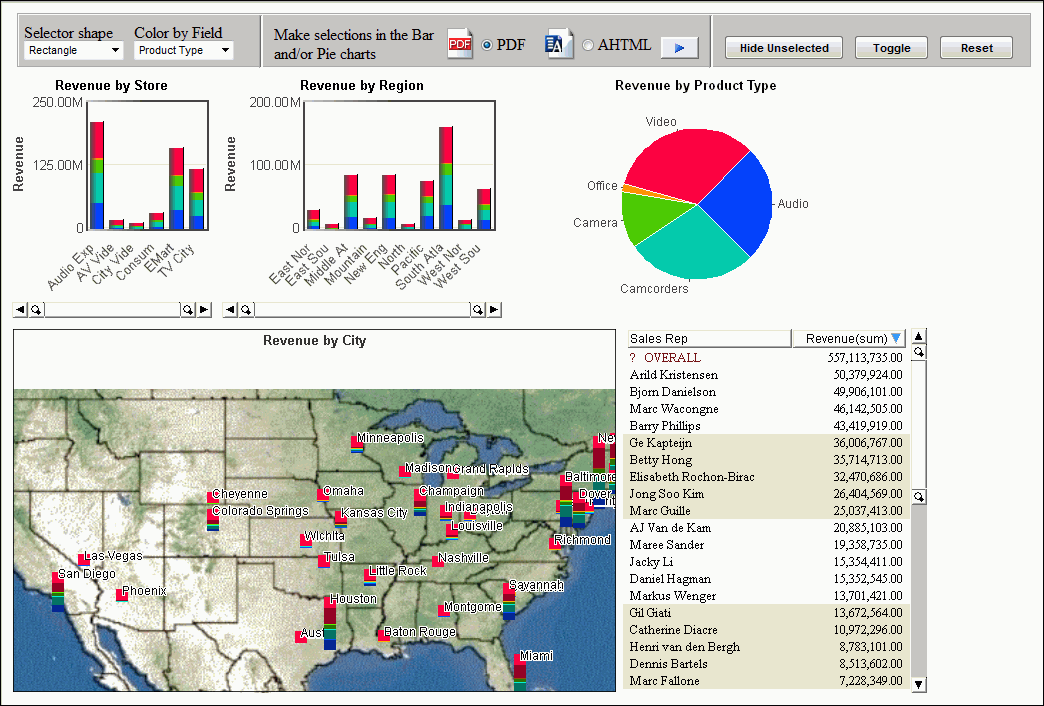
This section of the tutorial illustrates how to build a sample chart control interface that allows the manipulation of information on the HTML page during run time. The chart controls are applied to the sample page, vzMySales.htm, using Visual Discovery controls and JavaScript API.
For more information on the JavaScript API, see Using the Visual Discovery JavaScript API.
The final output should look similar to the following image:
Make sure that groupbox1 <FIELDSET> is the selected property in the Properties menu pane, then click the Styling: Advanced (CSS) ellipsis button.
Make sure that line1 <SPAN> is the selected property in the Properties menu pane, then click the Styling: Advanced (CSS) ellipsis button.
This procedure adds a Drop Down List control to the menu bar, which can be used to set the way the mouse selects data graphically at run time. This applies to non-3D components only.
Make sure that combobox1 <SELECT> is the selected property in the Properties menu pane. Set these attributes as follows:
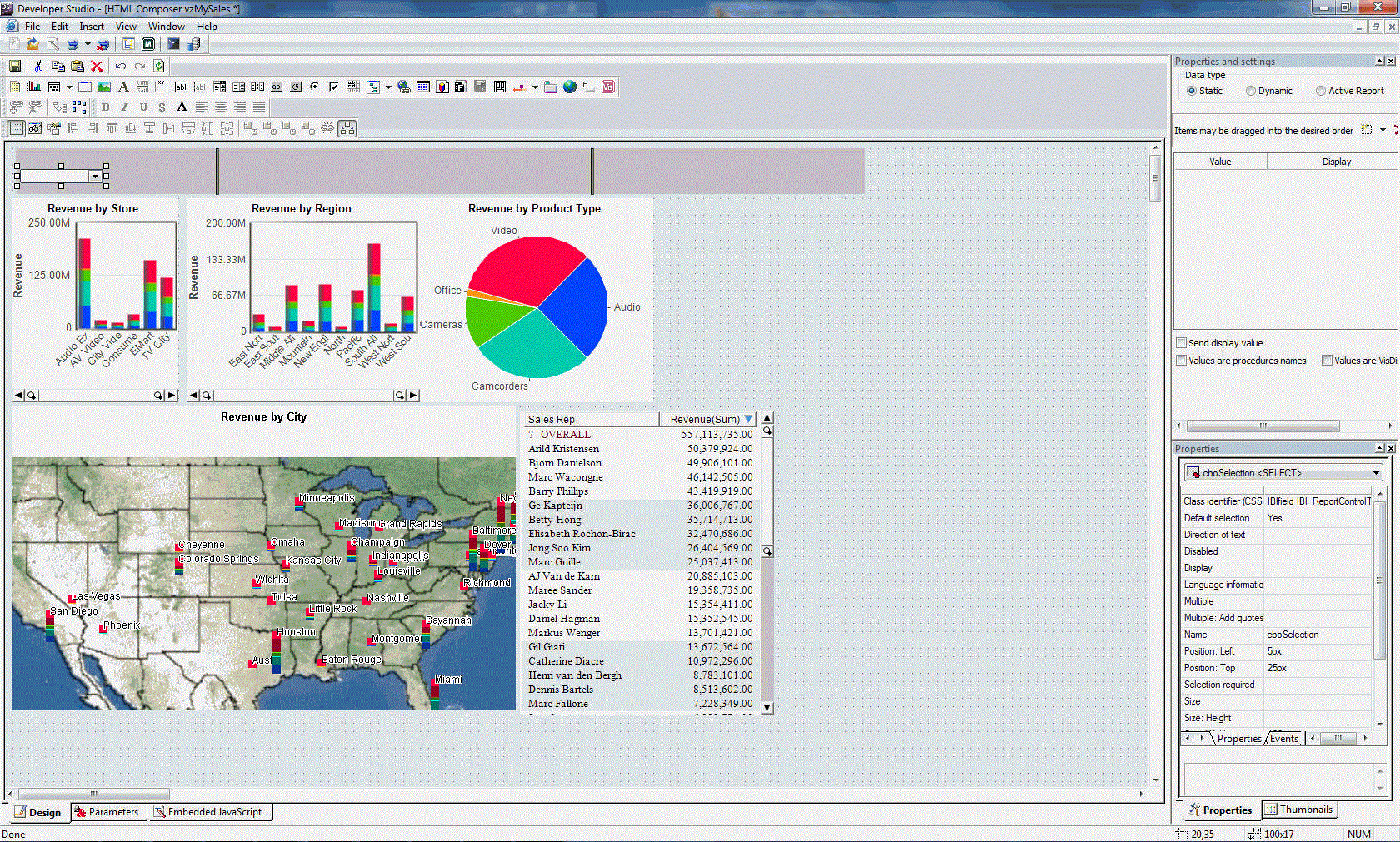
The Properties and settings dialog box appears.
Note: For the steps below, it is important that you make sure that cboSelection <SELECT> is the selected property in the Properties menu pane before you open the Parameters window. If it is not selected, you can select it from the drop-down menu at the top of the Properties menu. If it does not appear in the drop-down menu, you need to refresh the menu. You can do this by clicking anywhere on the active form, then back on the Properties menu pane.
 , and
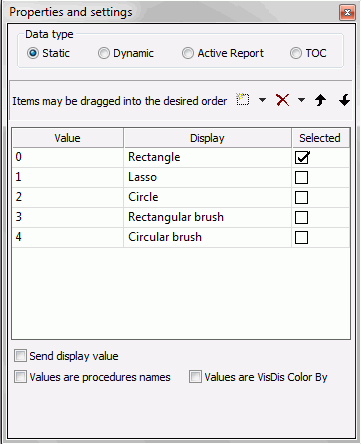
add the following options:
, and
add the following options:
|
Value |
Display |
|---|---|
|
0 |
Rectangle |
|
1 |
Lasso |
|
2 |
Circle |
|
3 |
Rectangular brush |
|
4 |
Circular brush |
The following image shows the Properties and settings box with the newly added options.
//VzSelectorShapeEnum
/*Shape	        Value     Description
------------------------------------
VzSelRectangle    0       Rectangle
VzSelLasso        1       Lasso
VzSelCircle       2       Circle
VzSelRectBrush    3       Rectangular brush
VzSelCircleBrush  4       Circular brush
*/
var vzBarOne             =document.getElementById('vzBarOne');
var varSelected          =ctrl.options[ctrl.selectedIndex].value;
vzBarOne.SelectorShape   =varSelected;
Note: The steps above added JavaScript code to the project. For more information on JavaScript standards and best practices, see Using the Visual Discovery JavaScript API.
Make sure that text1 <SPAN> is the selected property in the Properties menu pane. Set these attributes as follows:
Note: The selector shape control allows you to choose portions of the Visual Discovery controls during run time, through use of different shape selection options. With the HTML page open, click Circle, in the Selector shape drop-down list. Click and drag your cursor across the pie chart. Notice the selection you choose is selected in a circular shape.
This procedure adds a Drop Down List control to the menu bar, which can be used to color any table in the data pool by the specified field at run time.
Make sure that combobox2 <SELECT> is the selected property in the Properties menu pane. Set these attributes as follows:
Note: For the steps below, it is important that you make sure that cboColorBy <SELECT> is the selected properly in the Properties menu pane before you open the Parameters window. If it is not selected, you can select it from the drop-down menu at the top of the Properties menu. If it does not appear in the drop-down menu, you need to refresh the menu. You can do this by clicking anywhere on the active form, then back on the Properties menu pane.
Note: The Properties and settings dialog appears, if not, select View in the HTML Composer menu bar, and then click Properties and settings.
, select Visual
Discovery ActiveX, and choose the following options
from the cascading menus:
The following image shows the cascading menu options of the Properties and settings dialog box.

Make sure that text2 <SPAN> is the selected property in the Properties menu pane. Set these attributes as follows:
Note: The Color by Field control allows you to select a field in run time, and color the Visual Discovery controls on the page based on the field you choose. With the HTML page open, click Region, in the Color by Field drop-down list. Notice Visual Discovery controls on the page change color according to the region data. The same can be repeated for Store Name and Product Type.
This procedure adds a Push Button control to the menu bar that omits unselected items from the current display.
Note: This method is different from excluding. When you hide unselected items, the data is still present in other views. It would not be if excluded.
Make sure that button1 <INPUT> is the selected property in the Properties menu pane. Set these attributes as follows:
 .
.
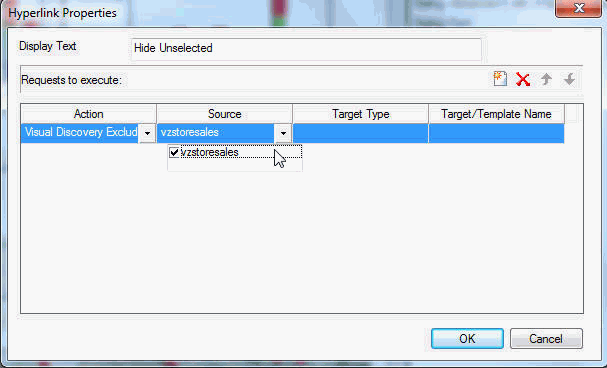
The following image shows Visual Discovery Exclude and vzstoresales selected in the Hyperlink Properties dialog box.
Note: The Hide Unselected button allows you to select a field, option, or data selection from the HTML page, hiding all the unselected options. This control is not the same as excluding the data. With the HTML page open, click Video in the pie chart and click Hide Unselected. Notice other data is visible, and the only information on your page relates to the Video data.
This procedure adds a Push Button control to the menu bar that toggles the actively selected items. Selected items become unselected, and the unselected items become selected.
Make sure that button2 <INPUT> is the selected property in the Properties menu pane. Set these attributes as follows:
vzBarOne.Command(7117, "", 0, 0); //***Toggle Unselected
Note: The steps above added JavaScript code to the project. For more information on JavaScript standards and best practices, see Using the Visual Discovery JavaScript API.
Note: The Toggle button allows you to switch views between selected data of a Visual Discovery control and the unselected data. With the HTML page open, click Video in the pie chart. Click Toggle and notice that the unselected data in the controls are selected. Click Toggle again then notice that the Video data is selected.
This procedure adds a Push Button control to the menu bar that refreshes all components on the page to their original state.
Make sure that button3 <INPUT> is the selected property in the Properties menu pane. Set these attributes as follows:
vzBarOne.Command(7112, "", 0, 0); //***Restore Excluded
vzBarOne.Command(7115, "", 0, 0); //***Select All
Note: The steps above added JavaScript code to the project. For more information on JavaScript standards and best practices, see Using the Visual Discovery JavaScript API.
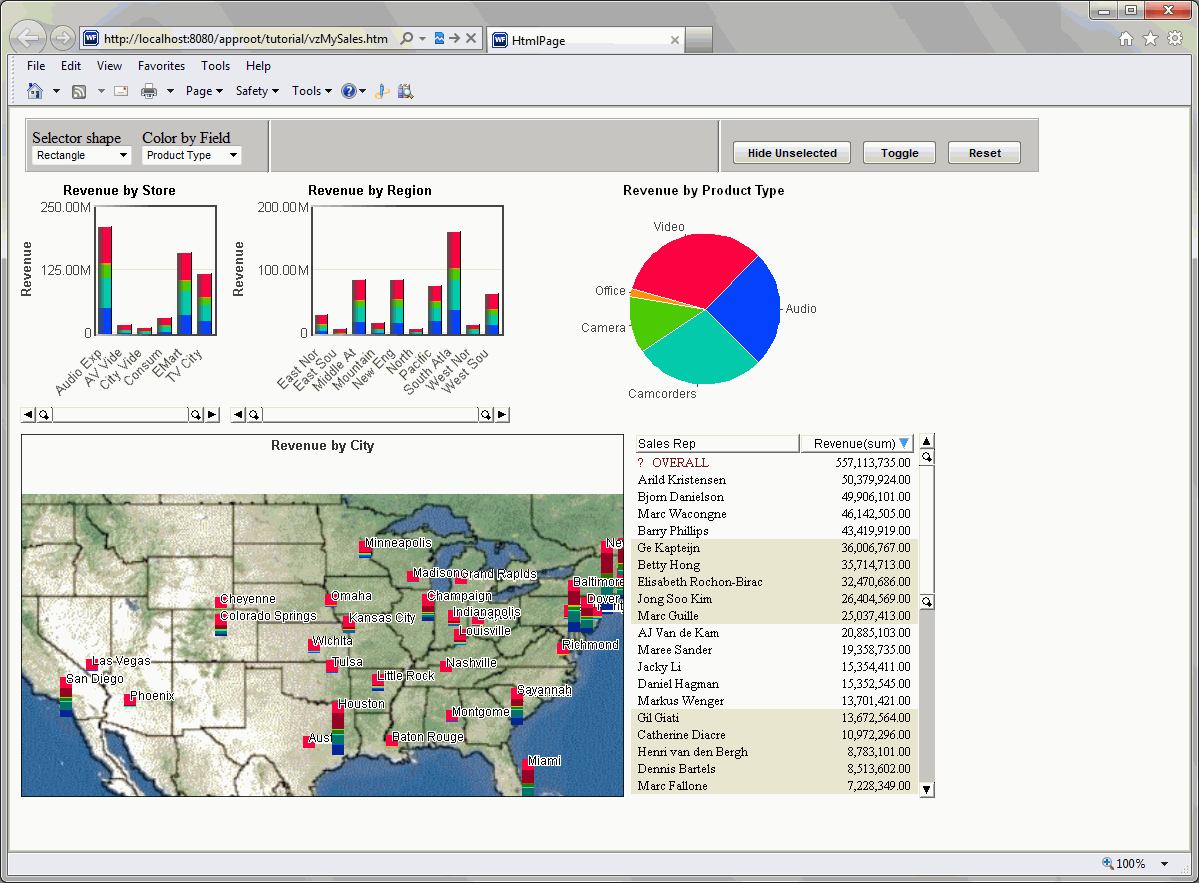
Note: The Reset button refreshes all components on the HTML page back to their original state. With the HTML page open, select Audio on the pie chart, and then click Toggle. Notice that only the Audio data is visible. Next click Reset, to refresh all data in its original state.
This procedure adds a Radio Button control and a Push Button control to the menu bar. Each control generates a list of strings representing the labels displayed for the selected items. One displays an active report, and the other displays a PDF.
Make sure that text3 <SPAN> is the selected property in the Properties menu pane. Set these attributes as follows:
Note: If you did not add the ibidemo folder directory when you first created your new project in HTML Composer, you must copy the file into your application folder. VZDashboard.fex can be copied from \ibi\apps\ibidemo.
The following image shows the New Parameters dialog box.
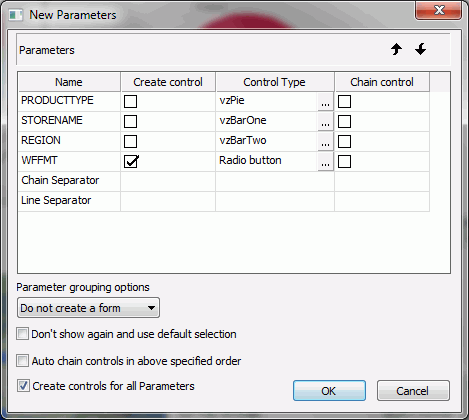
The chart control Properties and Settings dialog box opens.
to add
a new control. Value2 appears below the PDF value.
An AHTML report icon and radio button appear next to the PDF icon and radio button.
Note: format_ahtml_32.png, should be copied from the \ibi\DevStudio80\ibi_html\javaassist\ibi\html\describe folder to your application folder.
You must map the parameter names to the data pool fields properly to run the report selections properly.
A Properties and settings dialog box appears.
Region under vzBarTwo. Product Type under vzPie.
The Hyperlink Properties dialog box opens.
The following image shows the Hyperlink Properties dialog box.
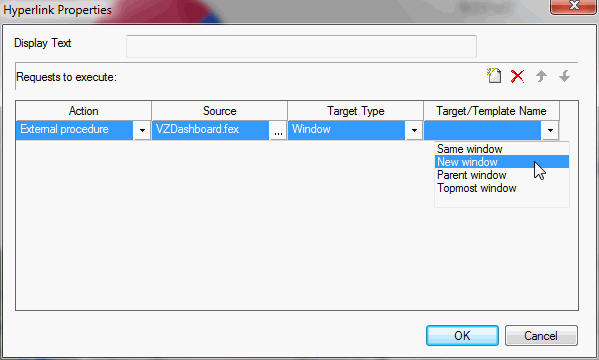
 .
.
The values from the charts are passed to the report. The report contains the selected data only.
Note: To accurately reflect the parameter values selected from the three charts, you must update the WHERE statements in the Vzdashboard.fex to use multi-select syntax.
To update the Vzdashboard.fex:
WHERE (PRODUCTTYPE EQ '&PRODUCTTYPE'); WHERE (STORENAME EQ '&STORENAME'); WHERE (REGION EQ '®ION');
WHERE PRODUCTTYPE EQ &PRODUCTTYPE.(OR(FIND PRODUCTTYPE IN CENTURYSALES)).; WHERE STORENAME EQ &STORENAME.(OR(FIND STORENAME IN CENTURYSALES)).; WHERE REGION EQ ®ION.(OR(FIND REGION IN CENTURYSALES)).;
| WebFOCUS |